Most people open Google Maps, type in a destination, and drive — never realizing there's a second layer of the app built specifically for the drive itself, not just the arrival. Once you start navigation, tapping the search icon or "Add stops" pulls up categorized suggestions positioned along your actual route, not just near wherever you happen to be standing right now.
How it actually works
Start turn-by-turn directions as normal, then tap the search bar at the top or the "Add stops" option. Instead of the usual nearby-search results, you get a scrollable set of categories — coffee, food, gas, restrooms, attractions — with each suggestion mapped to somewhere genuinely close to the road you're already driving, not just close to your current pin. Tap one, and it slots in as a waypoint without derailing the rest of your route.
Where it changed a trip for us
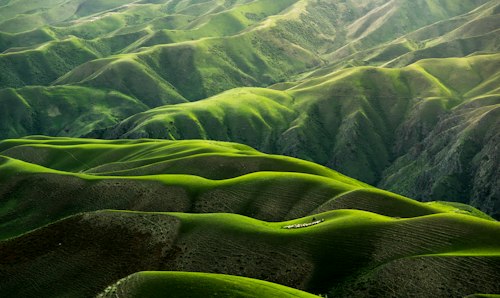
On the long coastal stretch through Norway's fjord country, we used it to find a fish market in a town we hadn't planned to stop in at all — a suggestion that came up simply because it sat five minutes off our route, not because we'd researched it in advance. It became one of the better meals of the whole trip, entirely unplanned.
Good for convenient quality, not true obscurity
It's worth being honest about what this feature is and isn't. It tends to surface well-reviewed, easy-to-find places — genuinely useful for avoiding a mediocre gas-station lunch, but it's not going to hand you the kind of unmarked, no-signage spot a local might. On New Zealand's South Island road trip, it was reliable for finding a decent bakery between long driving stretches, but the best stop of that trip — a lookout with no name on the map — came from a conversation with a petrol station attendant, not the app.
The gap between "along your route" and "worth the detour"
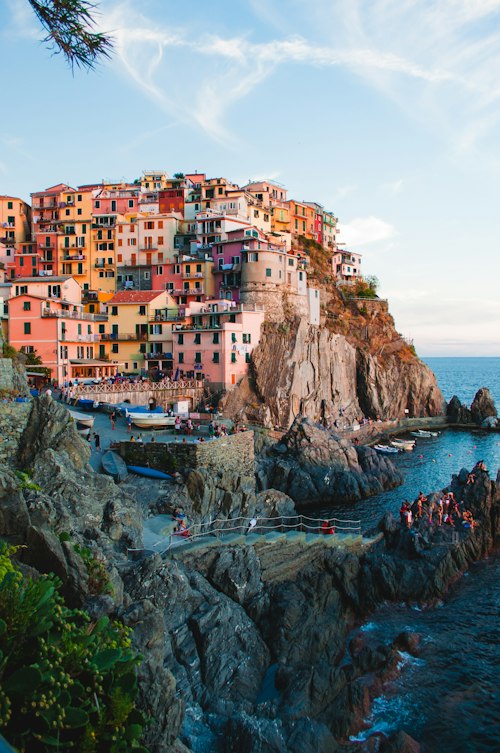
Because everything suggested sits close to your existing path, it's easy to accept a stop simply because it's convenient rather than because it's actually good. On the Amalfi Coast, similar routing tools nudged us toward a lookout that turned out to be crowded and underwhelming purely because it was the closest option — worth checking star ratings and a photo or two before committing, rather than tapping the first suggestion that appears.
A simple habit for long driving days
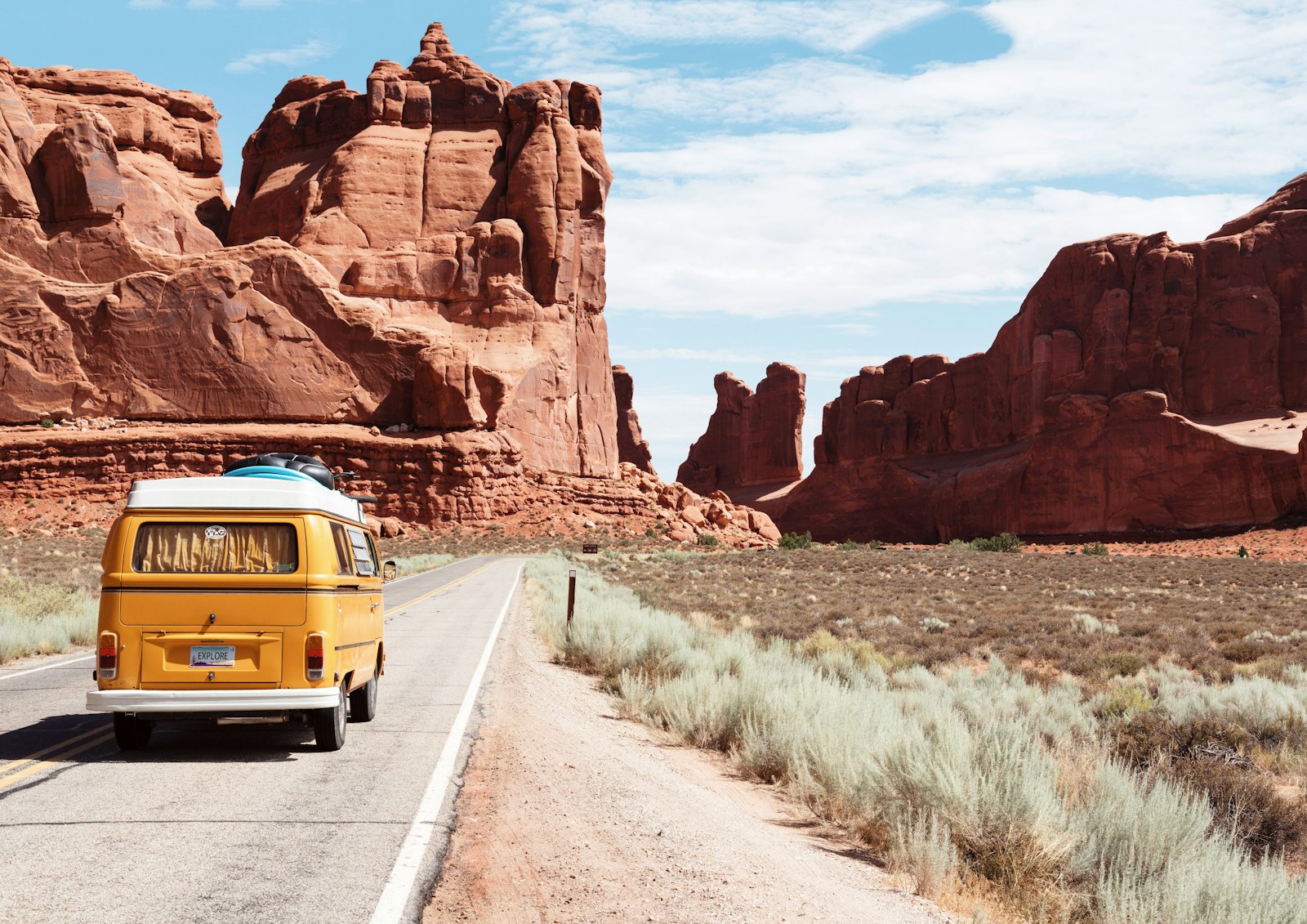
We now open the stops menu roughly once an hour on any drive longer than three or four hours, mostly as a way to break up the driving itself rather than out of necessity. It rarely changes the whole day, but it consistently turns an otherwise forgettable fuel stop into something slightly better than it would have been left to chance. Google's own writeup on the feature, on the official Google blog, covers a few extra shortcuts worth knowing if you use it often.
Frequently Asked Questions
How do I use Explore along your route in Google Maps?
Start navigation to your destination, tap the search icon or "Add stops," and Google Maps will show categorized suggestions — food, gas, attractions — positioned along your actual route rather than just near your current location.
Does this feature work offline?
No — suggestions are pulled live, so you'll need a connection at the moment you're browsing stops, even if you've downloaded the base map for offline navigation.
Is it reliable for finding genuinely good stops, or just popular ones?
It leans toward well-reviewed, easy-to-find places rather than truly obscure ones, so it's a good filter for convenient quality stops but not a substitute for asking locals about lesser-known spots.